
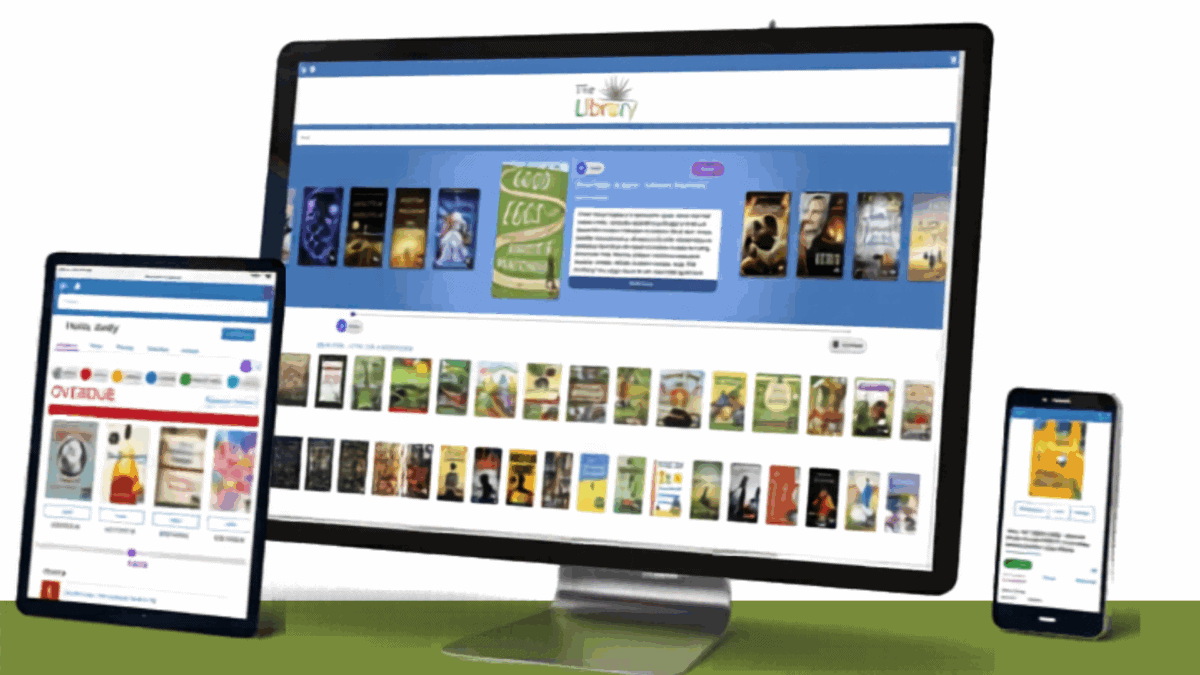
Unlock a world of knowledge with our new catalog designed to enhance your library journey.
The new sleek design and handy features lets you quickly find, reserve, and enjoy your favorite books, materials, and digital materials. With easy-to-use tools, you will discover new books and authors effortlessly. Now it’s simple and fun to explore a world of stories and information! Check out the new Library Catalog
Common Questions and Answers Below:
How do I login to my account
Start Here: Library Catalog
Enter your library card number and password to log in. If you don’t know your password, use the “forgot password” option.
Once in your account, you can change your username to whatever you like, we suggest your email address.
You can always call the library and we can check your credentials and reset your password.
How do I reset my password
If you’ve forgotten your password, click on ‘Forgot Password’ on the login page. Follow the instructions to reset it via your registered email.
You can always call the library and we can check your credentials and reset your password.
Can I access my account from my phone?
Yes, our system is mobile-friendly. Simply visit our website on your phone’s browser and log in as usual.
You can also download the Librista app from your app store for easy access.
How can I view my borrowing history?
To view your borrowing history, go to the ‘History’ tab in your account dashboard. Here, you can see a record of your past checkouts and returns.
To manage your history:
Select ‘Manage History’ from the side menu.
Click the ‘Account’ tab in the top toolbar.
How do I search for books or other items in the catalog?
Use the search bar on the homepage of the catalog to enter a title, author, or keyword. You can refine your results using filters like format, genre, or availability.
What information can I see about an item in the OPAC?
When you click on an item in the OPAC, you’ll find a wealth of helpful information, including:
Series Information: Check if the item is part of a series and view similar series.
Availability: See if the item is currently available and how many copies are in circulation.
Bibliographic Details: Access details like the call number, author, publication year, and publisher.
Summary: Read a brief description of the item.
Professional Reviews: Explore expert reviews to help you decide if the item is right for you.
“Look Inside”: Preview a sample of the item when available.
Similar Items: Discover related books or materials.
How can I place a hold on an item?
Log in to your account, find the item in the catalog, and click the ‘Reserve’ button. You’ll receive a notification when the item is ready for pickup.
How do I renew items I’ve checked out?
Log in to your account and navigate to the ‘Items Out’ section of your dashboard. Select the items you want to renew and click ‘Renew.’ Note that some items may not be eligible for renewal, usually if the item is on reserve for another patron. If your item is overdue, please call the library to renew.
Can I create and save custom reading lists?
Yes! Our system makes it easy to create and organize personalized reading lists. Here’s how:
- Saving Items to Your List:
While searching the catalog, you can click ‘Save for Later’ on any item. This automatically adds the item to a list called ‘Uncategorized.’ Once you’ve saved an item, the button will change to say ‘View List.’ Clicking this will take you directly to your saved list. - Viewing Your Lists:
To access all your saved items, go to your dashboard and select the ‘My Lists’ tab. Everything you’ve saved will appear in the ‘Uncategorized’ list. - Creating and Managing Multiple Lists:
To create custom lists (e.g., “To Be Read” or “Cozy Thrillers”), go to the ‘My Lists’ page and click the ‘Add List’ button at the top of the screen. You can give your new list a unique name. Note that the ‘Uncategorized’ list cannot be renamed or deleted. - Organizing Items in Your Lists:
From the ‘Uncategorized’ list, click the three vertical dots next to any item to open a menu. This allows you to:- Remove the item from your list.
- Move the item to another list.
- Copy the item to a different list.
- Placing Holds from Your Lists:
You can reserve items directly from your lists! Just click the ‘Reserve’ button beneath the item you want to place on hold.
With these features, you can organize your reading goals, track favorite genres, and easily manage your library materials!
What is the “Watching” tab, and how does it work?
The “Watching” tab allows you to save and track books, authors, subjects, or series you’re interested in, so you’ll be notified when new materials matching your criteria are added to the catalog. Here’s how to set it up:
- Go to the ‘Watching’ tab in your account.
- Choose a category to watch: author, subject, or series title.
- Enter the specific term you want to track (e.g., a favorite author or book series).
- Select the type of material you’re interested in, such as books, large print, or magazines.
Once a new item that matches your criteria is added to circulation, you’ll receive a notification letting you know it’s available!